Capexo on your desktop, online or fully offline
One app for Windows and macOS. Sign in to your Capexo account, or with Lifetime, keep every programme in a database on your own computer.
The desktop app is not available yet. It will come to the Microsoft Store for Windows and as a signed download for Mac. Until then, install Capexo from your browser.

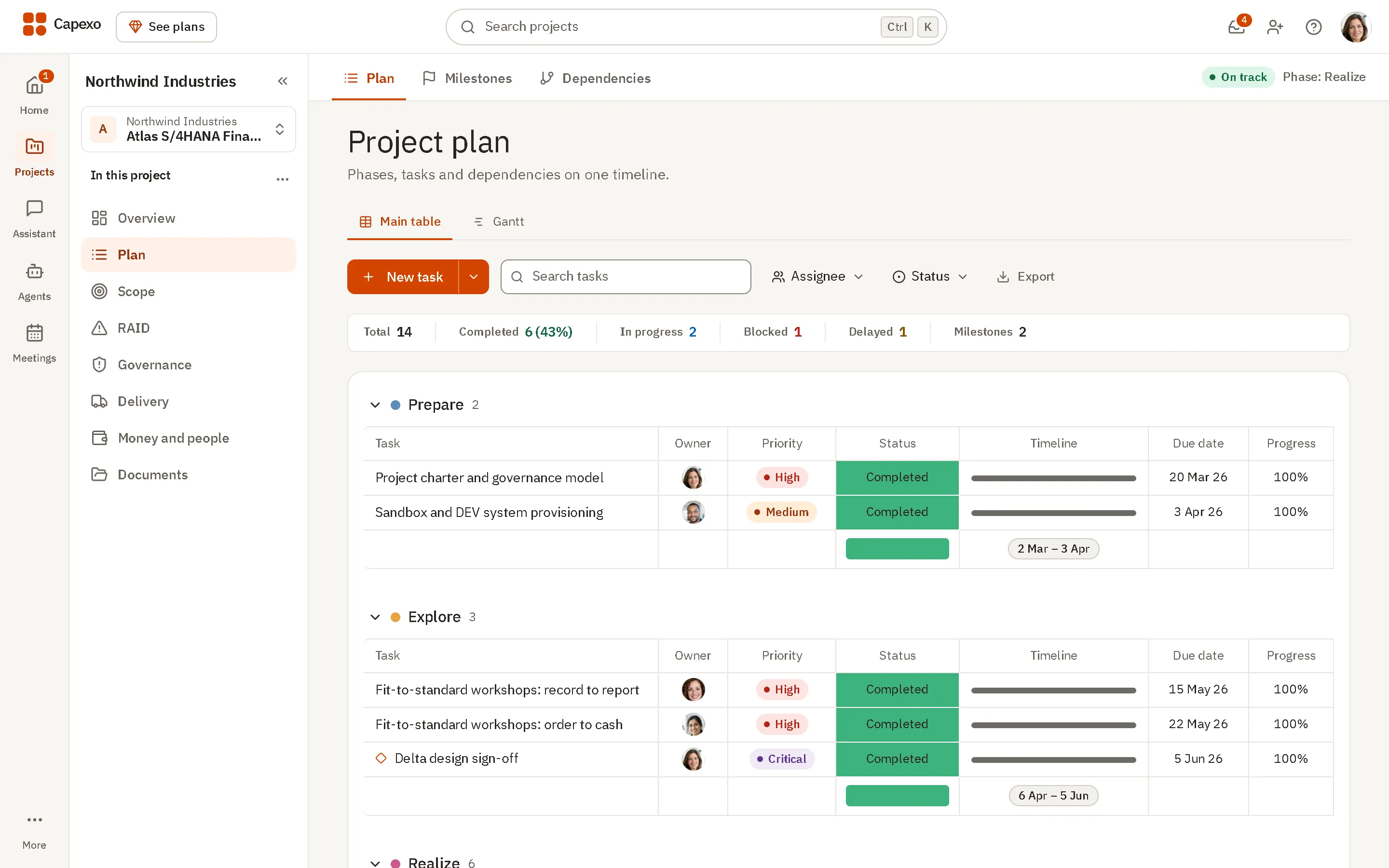
Two ways to run it
The first time it opens, you choose how the app runs. You can open a licence later from the File menu.
The offline desktop edition
With Lifetime
Capexo runs fully on your computer, with its own Postgres database and your files in your user folder. Nothing goes to Capexo servers, and it keeps working with no connection.
- The same programme modules as the cloud app
- A local database that starts and stops with the app
- Works offline after a one-time activation
- Backup, restore, export and import from the File menu
The desktop app for your cloud account
With any Capexo account
Sign in with your Capexo account and work on the same companies and projects as in the browser, in a window of its own.
- Your data stays in the Capexo cloud
- Your team, roles, invites and e-signatures, as on the web
- The same sign-in as in the browser
Activate once, then work offline
A Lifetime licence covers up to three computers. Activation needs a connection once. After that, the app opens with or without one.
Download your licence
Sign in to Capexo in your browser, open Settings, Your plan, and download your licence file from the Desktop app panel.
Activate this computer
Open the licence file in the desktop app and select Activate this computer.
Work offline
Capexo prepares its own database and opens signed in as you. From then on it works with or without a connection.
Up to three computers
To move to a new computer, free an old one in Settings in your browser, or from the File menu of the app on that computer.
A licence check once a week at most
When the computer is online, the app confirms the licence at most once a week. It never has to go online to open.
If a licence is refunded
A refunded licence turns the app read-only. You can still back up and export everything you made.
Your data stays on your computer
A database of its own
Postgres runs inside the app and answers only this computer. Your projects and uploaded files stay in your user folder.
Nothing sent to Capexo
The offline edition sends no programme data to Capexo. It goes online to activate, to check the licence and for updates.
The same access rules
Every record has the same row-level security as in the cloud, and the app seals its local secrets with the protected storage of Windows or macOS.
AI and speech on your terms
AI uses your own key, from your computer to the provider you choose. Speech can be turned into text on the computer itself.
Back up, restore, export and import
Your data is on your computer, so the app gives you the tools to keep it safe and to move it.
One backup file
File, Back up writes every table and every uploaded file into one backup file, saved wherever you choose.
Restores that check first
A restore checks the file, builds the restored data beside your current data and keeps what it replaced.
A backup before every update
Before an update changes the database, the app backs it up. If the update fails, that backup is restored.
Projects that move
Export a project to one file with its documents, and import it into the cloud app or onto another computer.
For Windows and macOS
Windows
From the Microsoft Store, which signs the app and keeps it up to date. It installs without administrator rights, and your data stays when you uninstall.
macOS
A download signed and notarised with Apple. The app checks for updates when it opens and once a day, downloads them in the background and asks before it restarts.
Questions about the desktop app
- Who gets the offline edition?
Everyone with Lifetime. The licence is issued when you buy and covers up to three computers.
- Can a team share one offline install?
No. The offline edition is for one person.
- It has no invites, team roles, billing or e-signatures.
- For a team, use the Capexo cloud, in the browser or in the desktop app.
- Does the offline edition sync with the cloud?
No. The two are kept apart. To move a project, export it from one and import it into the other.
- What happens to my data if I uninstall?
It stays in your user folder. Make a backup first if you are moving to another computer.
- Is there a Linux version?
Not today. The desktop app is for Windows and macOS.
Run Capexo where your programme needs it
Start in the browser today on any plan, or choose Lifetime for the offline edition.

The people in the photos on this page are AI-generated illustrations, not customers or staff.